


Frequently Asked Questions
Signup and Login Questions
I submitted the form for a new Rapid Response® account. What should I expect next?
Watch your inbox for emails verifying we received your request, then another email with steps to complete your multi-factor authentication.
What should I do to get access to Rapid Response® if I already have access to Supervision Central or OASIS?
Agency staff that already have access to Supervision Central and/or OASIS follow a different request process. To get started, send an email to the Rapid Response team noting that you are requesting access to the Rapid Response site and that you already have access to Supervision Central or OASIS.
How do I change my password?
Depending on your access to various other applications in the Federal Reserve ecosystem, your approach for changing your password will vary.
- If you use Login.gov to access the Rapid Response site, resolve your issues by visiting Help | Login.gov . If further questions arise, visit Contact us | Login.gov.
- If you have a Supervision Central account, email the Rapid Response team to request assistance with resetting your password. You will receive a temporary password to use before being prompted to reset your password.
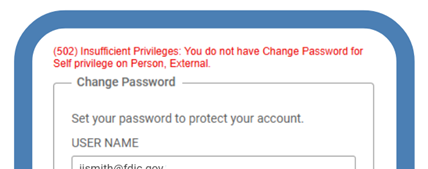
- If you do not have an active Supervision Central account, you can reset your own password by clicking the "Need Help Signing In?" button on the Rapid Response log in page.
What if I got a new phone and my multifactor authentication needs to be updated?
Resetting your multifactor requires a manual step by the Rapid Response team. To get started, send an email to the Rapid Response team and mention that you already have an account, but have a new phone.
Using the Site
What browsers does Rapid Response® support?
Rapid Response® supports the following web browsers:
- Mozilla Firefox (latest available)
- Safari (latest available)
- Microsoft Edge
- Google Chrome (latest available version)
How do I register for future sessions?
Log-in to the Rapid Response site. Select an upcoming session from the Announcements section. Click the Enroll button to register for the session. Accept the session calendar invitation from rapidresponse@sabacloud.com. Join the session on the scheduled date.
How do I drop myself from a session?
Log-in to the Rapid Response site. Find My Learning on the right side of the page. Click View Details. On the session page, select Drop. Additionally, you will need to manually delete the calendar reminder from your email calendar.
How do I watch a previous session?
Log-in to the Rapid Response site. Search for a previous session in the top right corner of the window. You can search by topic or presenter name. When you find the session you'd like to watch, select Launch.
Who do I contact for support?
If you are unable to resolve your issue by reviewing these FAQs, contact the Rapid Response team .